3. Add a SolidJS component
Create the root component
The root component will be our entrypoint for the SolidJS application. The WebPart will render this component and we will pass all of the WebPart properties.
- Navigate to the folder
src/webparts/solidDemo - Create a
componentsfolder - Create a
SolidDemo.tsxfile
import { JSX, createSignal } from "solid-js"
import { type ISolidDemoWebPartProps } from '../SolidDemoWebPart';

type Props = ISolidDemoWebPartProps;

export const SolidDemo = (props: Props): JSX.Element => {
    const [count, setCount] = createSignal(0);
    return (
        <div>
            <p>Count: {count()}</p>
            <button type='button' onclick={() => setCount(x => x - 1)}>-</button>
            <button type='button' onclick={() => setCount(x => x + 1)}>+</button>
            <hr />
            <div>Text 1: {props.text1}</div>
            <div>Text 2: {props.text2}</div>
        </div>
    );
}
Create the renderView helper
We create a helper function that makes it easier to integrate the root component to the WebPart class.
This helper keeps the latest properties in a signal,
returns an update function to change properties after the initial render,
and a dispose function to remove the content and cleanup resources.
- Create a
render-view.tsxfile in thecomponentsfolder
import { createSignal } from "solid-js";
import { render } from "solid-js/web";
import { SolidDemo } from "./SolidDemo";
import { type ISolidDemoWebPartProps } from "../SolidDemoWebPart";

type Props = ISolidDemoWebPartProps;

export type RenderedView = {
    update(props: Props): void;
    dispose(): void;
};

export const renderView = (div: HTMLElement, props: Props): RenderedView => {
    const [properties, setProperties] = createSignal({ ...props });
    const dispose = render(() => <SolidDemo {...properties()} />, div);
    return {
        update: (newProps: Props) => setProperties({ ...newProps }),
        dispose
    };
};
Integrate into the WebPart class
We need to implement 3 operations to complete the setup:
Render the view once, update the view (e.g. when properties changes in edit mode), and disposing the view (e.g. when navigating away).
- Open the
SolidDemoWebPart.ts- Import the render-view helper,
- replace the
rendermethod, - implement the
onDispose, - and
onPropertyPaneFieldChangedhandlers.
...
import { type RenderedView, renderView } from './components/render-view';
...
export default class SolidDemoWebPart extends BaseClientSideWebPart<ISolidDemoWebPartProps> {
    private _renderedView: RenderedView | undefined;

    public render(): void {
        if (!this.renderedOnce) {
            this.onDispose();
            this._renderedView = renderView(this.domElement, this.properties);
        }
    }

    protected onDispose(): void {
        if (this._renderedView) {
            this._renderedView.dispose();
            this._renderedView = undefined;
        }
    }

    protected onPropertyPaneFieldChanged(): void {
        if (this._renderedView)
            this._renderedView.update(this.properties);
    }
    ...
}
Test with SharePoint
-
Start the dev server and add the webpart to a dev page.
-
If you need more information, follow this guide.
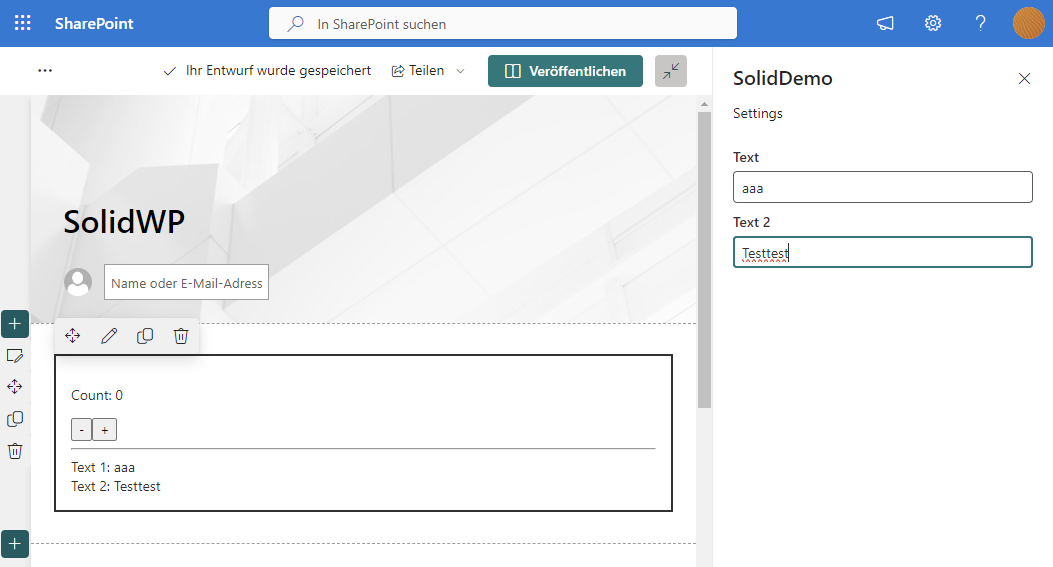
You should now be able to work with SolidJS components.